---
title: How to Use Embedded Giving
description: Keep this brief and write in complete sentences. No title capitalization.
---
[Skip to content](https://help.mywell.org/embedded-giving#main-content)
[](https://www.mywell.org/)
Open main navigation
Close main navigation
- [Sign In](https://app.mywell.org/sign-in)
[Sign In](https://app.mywell.org/sign-in)
How can we help?
- There are no suggestions because the search field is empty.
1. [Help Center](https://help.mywell.org/?hsLang=en)
2. [Getting To Know My Well Ministry](https://help.mywell.org/getting-to-know-my-well-ministry?hsLang=en)
# How to Use Embedded Giving
## Steps to Add My Well Giving on any Page on your Website.
**1.** Sign in to your My Well account and navigate to the Admin Portal.
**2.** Click on your organization logo and click on the page called **Embed.**
**3.** Click on the **Create New Link** button to create your embed link.
**4.** You will be prompted to enter the domain you want to use the link on. Enter your domain. Once you enter a domain it will appear with a message letting you know that you need to verify that domain:
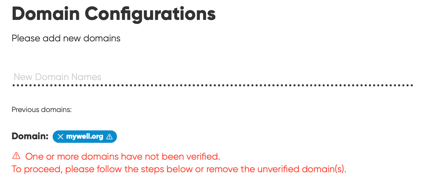
**Note:** If you have previously verified a domain and are creating a new link you will see the verified domain listed and be able to click on it.
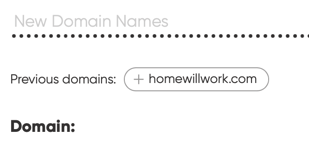
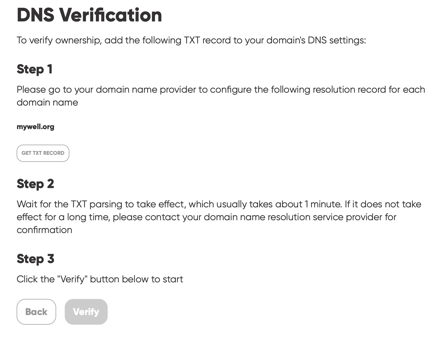
**5.** To verify your domain, follow the DNS verification steps provided on the page:
**6.** After the domain is verified, you will be prompted to create your link:
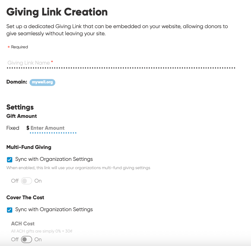
Links can by synced to your platform settings or can have custom settings for each embedded link created. This allows you to create a link that only shows one fund for a special campaign but have your normal giving configuration embedded on another page. The following settings are available:
**a. Gift Amount:** You can choose to set a fixed amount for the gift.
**b. Multi-Fund Giving:** You can choose to allow givers to give to multiple funds.
**c. Cover The Cost:** You can choose to allow givers the option to cover the cost.
**d. Gift Memo:** You can choose to allow givers to write a memo for their gift.
**e. No Default Campus:** You can choose to have the page default to a specific location.
**f. Funds:** You can choose which accounts display.
**g. Schedule:** You can choose which frequencies of schedule are available. If left blank, only One-Time gifts will be available as an option.
**7.** After creating the link, you will see a pop-up that includes the URL needed to embed giving.
**8.** Talk with your IT Admin to get the link embedded on a webpage. Below is a sample of HTML that can be used for an iframe:
``````
**Note:** You can access your links and edit them anytime on the **Embed** page in your Admin Portal.
- [Getting To Know My Well Ministry](https://help.mywell.org/getting-to-know-my-well-ministry?hsLang=en)
- [Making A Switch](https://help.mywell.org/making-a-switch?hsLang=en)
- [Setting Up Your Organization](https://help.mywell.org/setting-up-your-organization?hsLang=en#main-content)
- [Setting Up Your Merchant Account](https://help.mywell.org/setting-up-your-organization?hsLang=en#setting-up-your-merchant-account)
- [Setting Up The My Well Giving Platform](https://help.mywell.org/setting-up-your-organization?hsLang=en#setting-up-the-my-well-giving-platform)
- [Using My Well as a Giver](https://help.mywell.org/using-my-well-as-a-giver?hsLang=en#main-content)
- [Account Settings](https://help.mywell.org/using-my-well-as-a-giver?hsLang=en#account-settings)
- [Scheduled Gifts](https://help.mywell.org/using-my-well-as-a-giver?hsLang=en#scheduled-gifts)
- [Managing The My Well Platform As An Admin](https://help.mywell.org/managing-the-my-well-platform-as-an-admin?hsLang=en#main-content)
- [Admin Portal](https://help.mywell.org/managing-the-my-well-platform-as-an-admin?hsLang=en#admin-portal)
- [Settings and Tools](https://help.mywell.org/managing-the-my-well-platform-as-an-admin?hsLang=en#settings-and-tools)
- [Rock RMS Sync](https://help.mywell.org/managing-the-my-well-platform-as-an-admin?hsLang=en#rock-rms-sync)
- [Planning Center Online Sync](https://help.mywell.org/managing-the-my-well-platform-as-an-admin?hsLang=en#planning-center-online-sync)
- [Managing A My Well Merchant Account](https://help.mywell.org/managing-a-my-well-merchant-account?hsLang=en)
[](https://www.mywell.org)
Thank you for your continued partnership in ministry. We're honored to support you in your mission.
Copyright © 2025, My Well Ministry